

How to Purchase and Activate Windows 11
How to Purchase and Activate Windows 11
This page describes how to activate a Windows 11 license on a Windows 11 VM. It covers checking the current activation status, purchasing a valid license, entering a product key, and verifying successful activation.
Atlantic.cloud provides Windows virtual machines without a pre-activated Windows license. Microsoft Windows licensing is not included in the price of the instance. Clients are responsible for ensuring that their Windows installation is properly licensed and activated using a Microsoft license that permits use in our hosting environment. Please consult the licensing instructions below or contact our technical support team if you need assistance.
Check the current activation status
- Open Settings → System → Activation. Note the Edition and the Activation status.
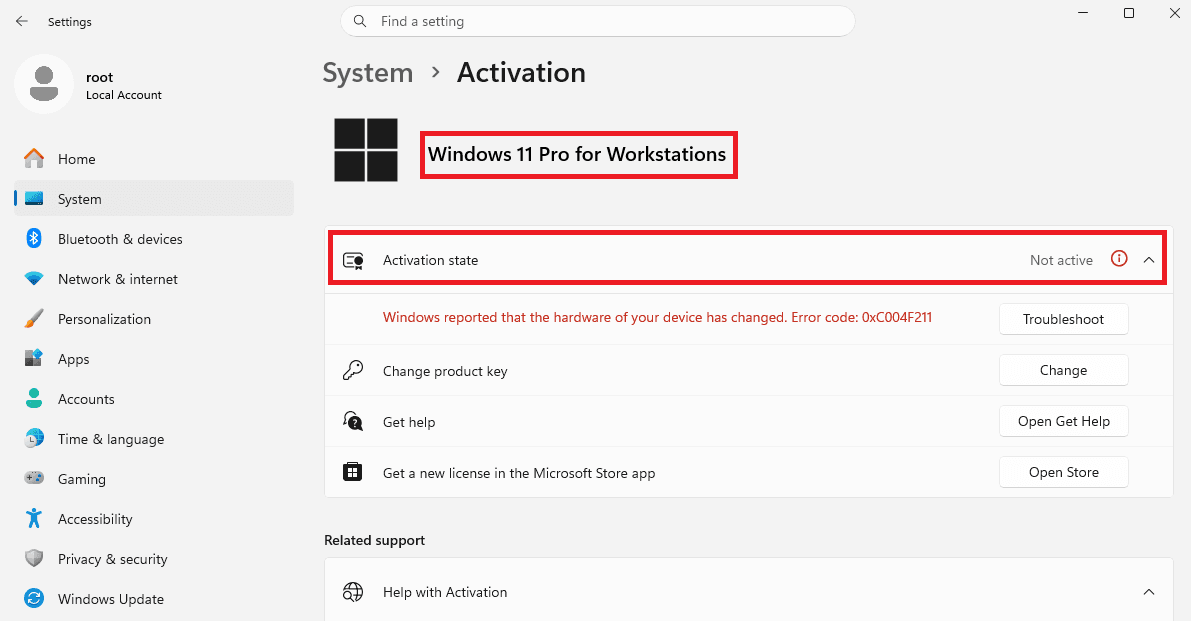
The expected activation state is "Not active" along with an error message — this is normal. Note the Edition (Pro, Pro for Workstations or Enterprise) — you will need a license that matches it.
Standard consumer (retail/OEM) Windows 11 keys do not include rights for use on a hosted virtual machine. Only licenses with active Software Assurance or a subscription (e.g., Microsoft 365 E3/E5, Windows 11 Enterprise E3/E5, or Windows VDA) are valid for hosted VM deployment.
Purchase a Windows 11 license
The license is not included in the price of the VPS/VDS. You are responsible for obtaining a valid Windows 11 license.
Requirements for your license:
- Must match the installed edition: Pro, Pro for Workstations or Enterprise (check in the previous section).
- Must include rights that permit use on a hosted virtual machine (e.g., Software Assurance, a subscription license, or equivalent). Standard retail or OEM keys do not include these rights and are not valid for use on a hosted VM.
Where to purchase:
- Microsoft directly
- An authorized Microsoft reseller or CSP partner
When purchasing, confirm with the vendor that the license is valid for use on a third-party hosted virtual machine (e.g., BYOL / Flexible Virtualization Benefit).
Activate via the Windows interface
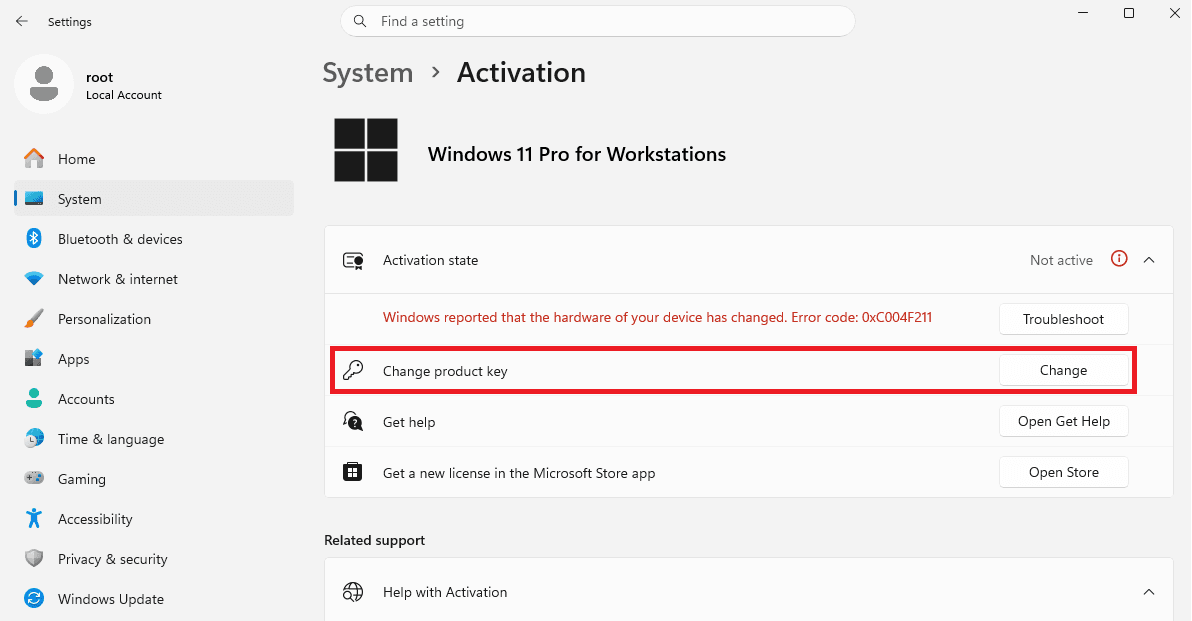
- Open Settings → System → Activation.
- Click Change product key.
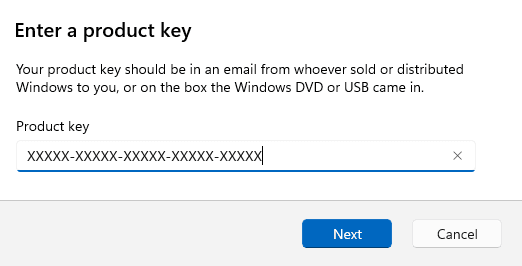
- Enter the 25-character product key.
- Click Next.
Verify activation
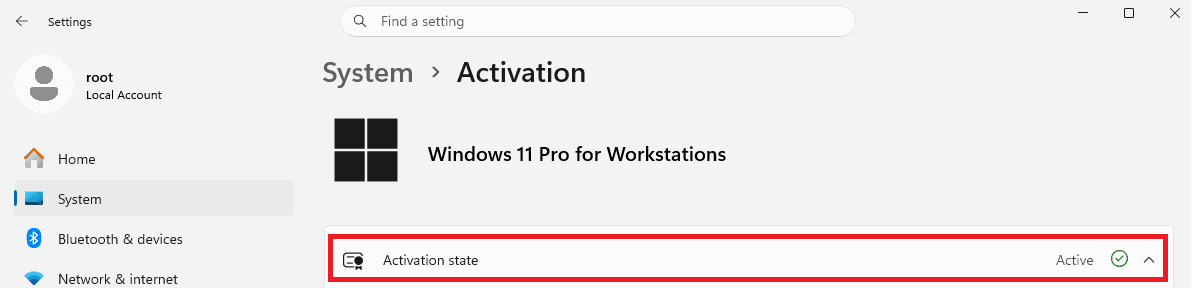
- Open Settings → System → Activation. You should see "Active".
If activation failed, check the error message against the table below:
| Error | Cause | Resolution |
|---|---|---|
| "The specified product key was not recognized" | Typo or invalid key | Re-enter the key carefully; verify with the vendor |
| "The product key entered does not match the edition" | Key edition ≠ installed edition | Purchase a key matching the installed edition, or reinstall the correct edition |
| "Windows cannot activate right now" / network error | No internet access or proxy blocking | Verify outbound connectivity to Microsoft activation servers (ports 80/443) |
| "This license is not valid for use on a virtual machine" | Retail/OEM key used on a hosted VM | Purchase a license explicitly valid for hosted VM use. Contact your provider for the correct license type. |
Swipe table horizontally to view all columns.
Was this article helpful?
Can't find what you're looking for?
Our professional systems engineers are available 24/7/365 to assist you.