

How to install MT4 & MT5 in your VM
How to Install MetaTrader 4/5 on Windows Server 2022
This page describes how to install and launch MetaTrader 4 or 5 on a Windows Server 2022 VM. It covers connecting to the VM, installing the broker-specific client, and logging in to a trading account.
Prerequisites
To install MetaTrader, you need:
- A Windows Server 2022 VM with RDP enabled.
- Trading account credentials (account number, password, server name).
Note: The broker-specific installer is recommended because it pre-loads the server list. However, you can also install the generic MetaTrader client and manually add the broker's server later via the Add button in the login dialog.
Connect to the VM
MetaTrader runs on the VM, so you need to access its desktop first. Windows Server uses Remote Desktop Protocol (RDP) for this.
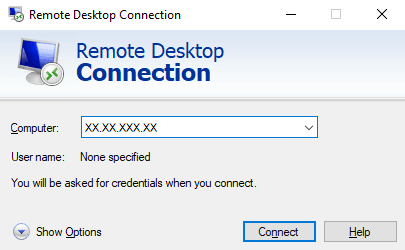
- Open Remote Desktop Connection (mstsc) on your local machine.
- Enter the VM's public IP address.
- Click Connect.
- Log in with the username and password provided.
You should now see the Windows Server desktop. All remaining steps happen on the VM.
Install MetaTrader
Option A: Broker-specific installer (recommended)
The broker's installer pre-configures the server list and may include broker-specific patches.
- Open Microsoft Edge on the VM.
- Navigate to the broker's website → Platforms or Download section.
- Download the MetaTrader installer for Windows.
- Right-click the installer → Run as administrator.
- Read the license agreement then proceed to click Next.
- Wait for the installation to finish and when available click Finish.
Option B: Generic installer (demo/test)
Use this if you don't have a broker account yet or want to test the VM first. You can add the broker's server later.
- Open Microsoft Edge on the VM.
- Navigate to the MetaQuotes website → Download section.
- Download the intended MetaTrader installer for Windows.
- Right-click the installer → Run as administrator.
- Read the license agreement then proceed to click Next.
- Wait for the installation to finish and when available click Finish.
After installation, a MetaTrader shortcut appears on the desktop.
Launch and log in
MetaTrader should open automatically after installation. If it doesn't, open it from the desktop shortcut.
On first launch, MetaTrader opens a dialog to create a demo account. To log into a live account instead, use File → Login to Trade Account.
Option A: Demo account
- Select New demo account and click Next.
- Select a server (e.g., MetaQuotes-Demo) and click Next.
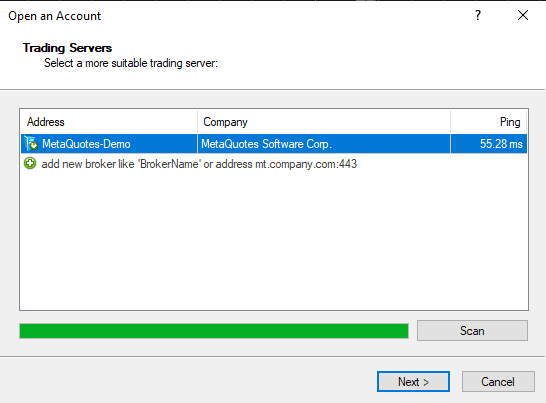
- Enter your name, email, and phone (any valid-format placeholder works for a demo). Check the terms and conditions box, then click Next.
- Wait for the registration to complete, then click Finish.
Option B: Live account
- Go to File → Login to Trade Account.
- Enter the necessary information, and select the broker's server from the dropdown.
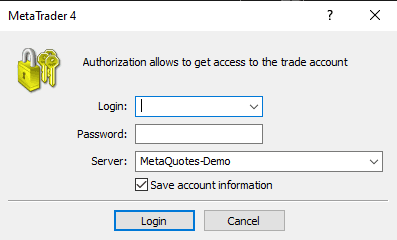
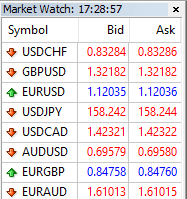
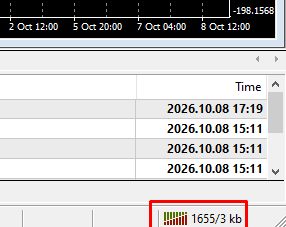
After logging in, verify that Market Watch shows live prices and the connection indicator in the bottom-right corner shows active data transfer.
Was this article helpful?
Can't find what you're looking for?
Our professional systems engineers are available 24/7/365 to assist you.